150–300 PPI: Canvas Resolution, Size by Size
Aim for 150 to 300 pixels per inch (PPI) at your final print size, measured against the printer’s own dots-per-inch (DPI) output. Choose 150 PPI for large canvases meant to be viewed from a few feet away, and reserve 200 to 300 PPI for smaller pieces or anything hung close to eye level, like a desk or hallway print. Pixel counts are checked before printing to minimize guesswork.
TL;DR:
- Printing larger canvases at 150 PPI can still produce sharp results because the woven texture diffuses pixelation and the giclée process hides some resolution deficiencies.
- For smaller or detailed prints, aim for at least 200 to 300 PPI, with most common sizes like 16x20 inches needing roughly 3,200 to 6,000 pixels across, depending on DPI.
- Check your image resolution by dividing pixel width by the intended print size in inches, and compare the resulting DPI against the recommended thresholds for your canvas size.
- Viewing distance significantly affects the effective DPI needed; larger pieces viewed from farther away can tolerate lower resolutions without appearing soft.
- Ease your print quality concerns by upscaling with care, ensuring your file’s pixel dimensions meet the recommended requirements before ordering, and requesting proof if resolution is borderline.
Table of Contents
- How Much DPI Does a Canvas Print Actually Need?
- How Many Pixels Do You Need for Common Canvas Sizes?
- How Do You Check Your Image’s Real Resolution?
- Does Viewing Distance Really Change What DPI You Need?
- Can You Fix a Low-Resolution Photo Before Printing?
- Why Do Some Photos Look Fine on Screen but Print Blurry?
- Sense Canvas’s Take on Resolution Checks
- Ready to Turn Your Photo Into a Canvas?
- Where to Read More on Pixel Math and File Prep
- Sources
- FAQ
How Much DPI Does a Canvas Print Actually Need?
Pixels per inch (PPI) describes how much image data your file packs into each inch. Dots per inch (DPI) describes how the printer lays down ink to reproduce that data. They get used interchangeably in casual conversation, but the number that actually matters is your final pixel count divided by the inches you’re printing at.
Three thresholds cover almost every situation:
- 150 PPI: acceptable for large canvases (24 inches and up) viewed from normal room distance.
- 200 PPI: a safe target for most standard sizes and mixed viewing distances.
- 300 PPI: worth chasing for small pieces, close-up viewing, or anything with fine detail like text or faces.
Canvas earns extra slack that glossy photo paper never gets. The woven texture scatters light and breaks up the kind of pixelation a smooth, reflective print would expose immediately. Combine that with the giclée printing process most canvas printers use, and a 150 PPI file can look every bit as crisp as a 300 PPI file once it’s on the wall, according to file-prep guidance from Photography Talk.
How Many Pixels Do You Need for Common Canvas Sizes?
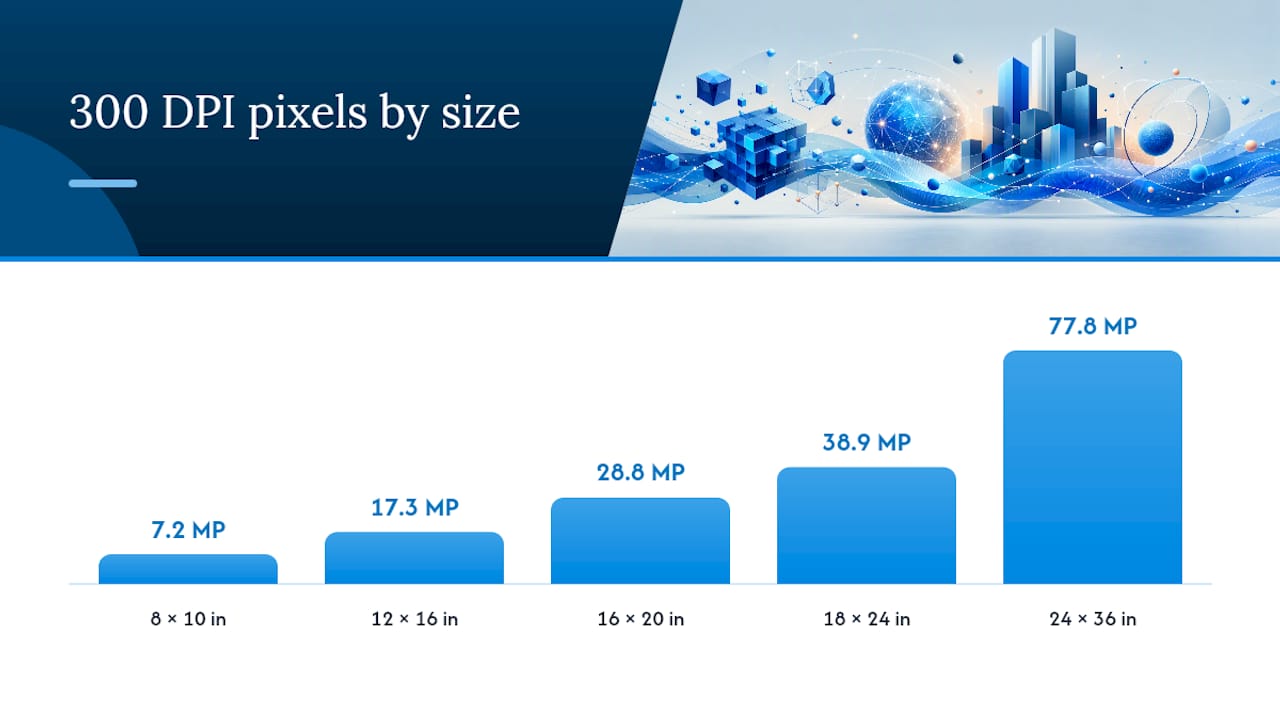
The math is simple: required pixels equal the print’s inches multiplied by your desired DPI, a formula detailed by Pixotter’s canvas prep guide. An 8 by 10 print at 300 DPI needs 2,400 by 3,000 pixels. Drop to 150 DPI and that same print only needs 1,200 by 1,500 pixels, per DecorWhim’s size-by-size breakdown.
Here’s how that scales across the sizes people order most often:
| Canvas Size | 150 DPI (pixels) | 200 DPI (pixels) | 300 DPI (pixels) |
|---|---|---|---|
| 8 x 10 in | 1,200 x 1,500 | 1,600 x 2,000 | 2,400 x 3,000 |
| 12 x 16 in | 1,800 x 2,400 | 2,400 x 3,200 | 3,600 x 4,800 |
| 16 x 20 in | 2,400 x 3,000 | 3,200 x 4,000 | 4,800 x 6,000 |
| 18 x 24 in | 2,700 x 3,600 | 3,600 x 4,800 | 5,400 x 7,200 |
| 24 x 36 in | 3,600 x 5,400 | 4,800 x 7,200 | 7,200 x 10,800 |
| 30 x 40 in | 4,500 x 6,000 | 6,000 x 8,000 | 9,000 x 12,000 |
If you’re ordering a gallery wrap, add 1.5 to 2 inches of extra bleed per side, since the printed image needs to fold around the stretcher bars. That bleed allowance raises your pixel requirement above the numbers in the table, an adjustment Pixotter and Sense Canvas’s own canvas photo wraps guide both flag as an easy step to miss. Most modern smartphone cameras, shooting 12 to 50 megapixels, comfortably cover prints up to roughly 20 by 30 inches without any upscaling, according to DecorWhim.
How Do You Check Your Image’s Real Resolution?
Before you order anything, find out what you’re actually working with.
- Check pixel dimensions. On Windows, right-click the file, select Properties, then Details. On a Mac, open the file in Preview and press Command+I. In Photoshop or Lightroom, the Image Size panel shows it instantly.
- Do the division. Take your pixel width and divide it by your intended print width in inches. A 4,000 pixel wide image printed at 24 inches gives you 4,000 divided by 24, or about 167 DPI.
- Compare against your target. If that number lands above 150 to 200, you’re in workable territory. Below that, decide whether to size down, upscale carefully, or order a proof print first to see it in person.
Does Viewing Distance Really Change What DPI You Need?
Yes, and it’s the single biggest reason canvas printing forgives lower resolution than most people expect. A common rule pegs comfortable viewing distance at roughly 1.5 to 2 times a canvas’s diagonal measurement, meaning a large statement piece over a sofa gets viewed from much farther away than a small print on a hallway wall, a point Photo Stack Exchange’s discussion of canvas resolution backs up with real examples.
- Landscapes, abstracts, and textured patterns hide soft pixels well, even at 150 DPI.
- Portraits, text, and anything with fine linework show softness faster, so push toward 250 to 300 DPI when you can.
- A heavier canvas weave diffuses detail further, while a smooth matte finish reveals slightly more.
Pro Tip: Stand where you’ll actually hang the piece and imagine viewing it from your couch or doorway, not from six inches away at your desk. That’s the distance your DPI choice needs to satisfy.
Can You Fix a Low-Resolution Photo Before Printing?
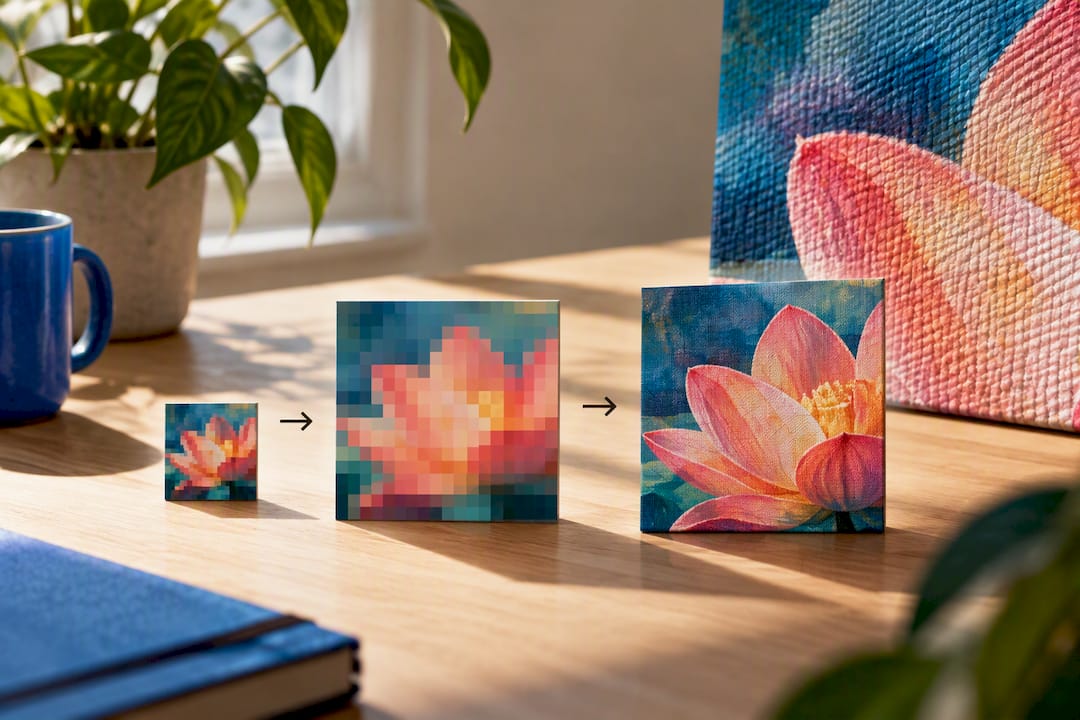
AI upscalers and Photoshop’s resampling tools can genuinely help a borderline file, but they can’t invent detail that was never captured. Most practitioners treat 2x enlargement as a practical ceiling, beyond which upscaled images start looking artificial rather than sharp, a limit Photography Talk warns against pushing past. After any upscale, zoom to 100% and inspect the image the way a printer would, checking for smeared edges or waxy skin tones before you commit to a large size.
Once the pixel count checks out, run through this export checklist:
- Convert to sRGB unless your printer specifically requests Adobe RGB.
- Save as a high-quality JPEG (minimal compression) or TIFF, never a re-saved screenshot.
- Set JPEG quality to 90 or above if your software gives you a slider.
- Add bleed of 1.5 to 2 inches per side for any gallery-wrap order, matching the stretcher depth.
Pro Tip: A crisp 150 DPI photo beats a blurry, over-sharpened 300 DPI upscale every time. File quality matters more than the raw number on the label.
Why Do Some Photos Look Fine on Screen but Print Blurry?
Social-media downloads are the usual culprit. Platforms like Instagram and Facebook compress and resize images automatically, often shrinking a 12-megapixel photo down to a fraction of its original pixel count. Screenshots carry the same problem, since they only capture your screen’s resolution, not the source file’s.
- Track down the original file on your phone or camera roll instead of a shared or downloaded copy.
- If the original isn’t available, choose a smaller canvas size that matches the pixels you actually have.
- Recrop conservatively. Every crop removes pixels, and heavy cropping can quietly drop a print from safe to soft.
- When in doubt, order a small proof print, since some print services won’t flag low-resolution uploads for you.
Sense Canvas’s Take on Resolution Checks
We review every uploaded file for pixel count, bleed allowance, and color profile before it goes to print, because a five-minute check prevents a disappointing wall piece. If your file sits in a gray zone, customers can request a proof or ask for sizing help to fit a specific wall or custom dimension. Sense Canvas builds its custom canvas wall art around getting that file-prep step right the first time, not after a print arrives soft.
— Sense
Ready to Turn Your Photo Into a Canvas?
The platform is built around helping customers address resolution questions before ordering. It offers a large selection of designs alongside custom photo options, allowing uploads of high-quality JPEG or TIFF files, custom size requests, or proof inquiries for files in borderline resolution ranges.
Browsing the full collection shows how far a canvas print stretches across styles, from abstract crypto-themed pieces to bold motivational money art, all starting from $85. If you already have a photo you love, upload it through the Sense Canvas site and let the team confirm your file’s pixel count before it goes to print. That one check is the difference between a wall piece you love and one you wish you’d sized differently.
Where to Read More on Pixel Math and File Prep
- Photography Talk’s canvas file-prep guide covers DPI thresholds and upscaling limits.
- Pixotter’s canvas prep article walks through pixel-dimension math and bleed.
- Torontocustomtshirts.ca’s 300 DPI guide explains DPI versus PPI for other print workflows.
Sources
- Tips for Printing Photos on Canvas: A File-Prep Guide - Photography Talk
- Photo to Canvas Print: Prepare Your Image Perfectly - Pixotter
- What is a suitable image resolution for canvas prints? - Photo Stack Exchange
- What Is the Best Resolution for Canvas Printing? (Complete 2026 Guide) - DecorWhim
FAQ
What Is the Recommended Resolution for Canvas Prints?
Aim for 150 to 300 PPI at your final print size, with 200 PPI serving as a safe middle ground for most orders. Large canvases viewed from a distance can drop to 150 PPI without looking soft, while smaller or close-up pieces benefit from staying closer to 300 PPI.
Is 600 or 300 DPI Better for Canvas Print Quality?
Neither is necessary for canvas. Printers and labs top out their usable benefit around 300 DPI, and canvas texture makes higher DPI increases essentially invisible to the eye once the piece is hung.
What Resolution Do I Need for a 24x36 Canvas Print?
At 150 DPI, you need roughly 3,600 by 5,400 pixels; at 200 DPI, about 4,800 by 7,200 pixels. A 24 by 36 canvas is typically viewed from farther away, so 150 to 200 DPI usually looks sharp in person.
What Resolution Do I Need for a 16x20 Canvas Print?
At 150 DPI, that’s 2,400 by 3,000 pixels; at 300 DPI, it climbs to 4,800 by 6,000 pixels. Since a 16 by 20 canvas often hangs closer to eye level than a larger piece, pushing toward 250 to 300 DPI helps preserve fine detail.
Does Sense Canvas Check My File’s Resolution Before Printing?
Yes, Sense Canvas reviews uploaded files for pixel count, bleed, and color profile before printing to catch resolution issues early. Customers can also request a proof or ask for help matching a file to a custom size through the Sense Canvas site.